Wednesday, July 29, 2009

Find who is Invisible on Yahoo messenger

Sometimes some of your friends who appear offline in yahoo messenger may not be actually offline, they may in the 'Invisible' mode. This maybe if they are trying to ignore you or are too busy to talk to anyone.

There is this small trick that you can use to find out what the truth is.

Firstly open your yahoo messenger main window and double click on the name of the person whom you want to check. The chat window will open obviously.

Click IMVironment button, select See all IMVironments, select Yahoo! Tools or Interactive Fun, and click on Doodle.
After loading the Doodle imvironment there can be two possibilities

1.If the user is offline Doodle are will show this "waiting for your friend to load Doodle" continuously .See in the picture below:


2. If the user is online (but in invisible mode), after few seconds (it can take up to one minute, depending on your connection speed), you should get a blank page like in the picture below. So you know that the user is online.

Multiple login in yahoo Without Using any Software

You can login with multiple id's on the same yahoo messenger without any download or patch .
Follow these steps :

1. Go to Start ----> Run . Type regedit, then enter .

2.Navigate to HKEY_CURRENT_USER --------> Software --->yahoo ----->pager---->Test

3.On the right page , right-click and choose new Dword value .

4.Rename it as Plural.

5.Double click and assign a decimal value of 1.

Its done!!
Now close registry and restart yahoo messenger and try Multiple Login

Make Your Windows Fast As Never Before

1) Click Start, Run and enter GPEDIT.MSC

2) Go to Computer Configuration, Administrative Templates, System.

3) Locate the entry for Turn autoplay off and modify it as you desire.


Speed Up Browsing
When you connect to a web site your computer sends information back and forth. Some of this information deals with resolving the site name to an IP address, the stuff that TCP/IP really deals with, not words. This is DNS information and is used so that you will not need to ask for the site location each and every time you visit the site. Although Windows XP and Windows XP have a pretty efficient DNS cache, you can increase its overall performance by increasing its size. You can do this with the registry entries below:

Windows Registry Editor Version 5.00
[HKEY_LOCAL_MACHINE\SYSTEM\CurrentControlSet\Services\Dnscache\Parameters]
"CacheHashTableBucketSize"=dword:00000001
"CacheHashTableSize"=dword:00000180
"MaxCacheEntryTtlLimit"=dword:0000fa00
"MaxSOACacheEntryTtlLimit"=dword:0000012d

Make a new text file and rename it to dnscache.reg. Then copy and paste the above into it and save it. Merge it into the registry.


DISABLE INDEXING SERVICES

Indexing Services is a small little program that uses large amounts of RAM and can often make a computer endlessly loud and noisy. This system process indexes and updates lists of all the files that are on your computer. It does this so that when you do a search for something on your computer, it will search faster by scanning the index lists. If you don't search your computer often, or even if you do search often, this system service is completely unnecessary. To disable do the following:

1. Go to Start
2. Click Settings
3. Click Control Panel
4. Double-click Add/Remove Programs
5. Click the Add/Remove Window Components
6. Uncheck the Indexing services
7. Click Next


OPTIMISE DISPLAY SETTINGS

Windows XP can look sexy but displaying all the visual items can waste system resources. To optimize:

1.Go to Start
2. Click Settings
3. Click Control Panel
4. Click System
5. Click Advanced tab
6. In the Performance tab click Settings
7. Leave only the following ticked:
- Show shadows under menus
- Show shadows under mouse pointer
- Show translucent selection rectangle
- Use drop shadows for icons labels on the desktop
- Use visual styles on windows and buttons


SPEEDUP FOLDER BROWSING

You may have noticed that everytime you open my computer to browse folders that there is a slight delay. This is because Windows XP automatically searches for network files and printers everytime you open Windows Explorer. To fix this and to increase browsing significantly:

1. Open My Computer
2. Click on Tools menu
3. Click on Folder Options
4. Click on the View tab.
5. Uncheck the Automatically search for network folders and printers check box
6. Click Apply
7. Click Ok
8. Reboot your computer


REMOVE THE DESKTOP PICTURE


Your desktop background consumes a fair amount of memory and can slow the loading time of your system. Removing it will improve performance.

1. Right click on Desktop and select Properties
2. Select the Desktop tab

3. In the
Background window select None
4. Click Ok

DISABLE UNNECESSARY SERVICES

Because Windows XP has to be all things to all people it has many services running that take up system resources that you will never need. Below is a list of services that can be disabled on most machines:

Alerter
Clipbook
Computer Browser
Distributed Link Tracking Client
Fast User Switching
Help and Support - (If you use Windows Help and Support leave this enabled)
Human Interface Access Devices
Indexing Service
IPSEC Services
Messenger
Netmeeting Remote Desktop Sharing (disabled for extra security)
Portable Media Serial Number
Remote Desktop Help Session Manager (disabled for extra security)
Remote Procedure Call Locator
Remote Registry (disabled for extra security)
Remote Registry Service
Secondary Logon
Routing &
Remote Access (disabled for extra security)
Server
SSDP Discovery Service - (Unplug n' Pray will disable this)
Telnet
TCP/IP NetBIOS Helper
Upload Manager
Universal Plug and Play Device Host
Windows Time
Wireless Zero Configuration (Do not disable if you use a wireless network)
Workstation
To disable these services:

Go to Start and then Run and type "services.msc"
Doubleclick on the service you want to change
Change the startup type to 'Disable"

REMOVE ANNOYING DELETE CONFIRMATION MESSAGES

Although not strictly a performance tweak I love this fix as it makes my machine 'feel' faster. I hate the annoying 'are you sure?' messages that XP displays, especially if I have to use a laptop touchpad to close them. To remove these messages:

1. Right-click on the 'Recycle Bin' on the desktop and then click 'Properties'

2. Clear the 'Display Delete Confirmation Dialog' check box and click 'Ok'

If you do accidently delete a file don't worry as all is not lost. Just go to your Recycle Bin and 'Restore' the file.


View Admin At welcome Screen

By default windows XP doesn't show the Administrator in the user list at the welcome screen. Here's a way to get around it.


Now head up to HKEY_LOCAL_MACHINE\Software\Microsoft\WindowsNT\CurrentVersion\Winlogon\SpecialAccounts\Userlist

create a new DWORD entry and name it as Administrator and change its value to 1.

exit and reboot for the changes to take effect.
To change it back change its value to 0 or simply delete the key.

Folder Options Missing ?

Open Run and then type "gpedit.msc".
Now goto User Configuration > Administrative templates > Windows Component > Windows Explorer.
Click on Windows Explorer you will find the 3rd option on the right side of screen "Removes the Folder Option menu item from the Tools menu"
Just check it, if it is not configured then change it to enable by double clicking on it and after applying again set it to not configured.

I hopes that you will find the option after restarting windows.

Show/Hide Hidden Files and Folders using Registry

The instructions below would help you to:
  • Show (or hide) hidden files and folders using the Registry Editor.

Showing all files and folders is good in certain ways. Windows, by default, disables this option to keep the users from accidently deleting files. It is a good practice to hide those files and folders if you don't want to mess with them. They have been created that way for some good reasons. However, to many of us, specially the software programmers, it might be more convenient to work with files/folders when we have them all displayed.

IMPORTANT This article contains information about registry modification. Modifying the registry incorrectly might cause critical problems to your computer. Make sure you understand the registry and back it up before modifying it.

If you just want an easy way to show/hide the hidden files and folder without messing up with the registry editor, see this article here.

Use this trick at your own risks

Here's how to enable/disable hidden files/folders using the "Registry Editor"

  1. Open the "Registry Editor" ("Start" >> "Run", then type "regedit" and Enter).
  2. Expand to the following key:
    HKEY_CURRENT_USER\Software\Microsoft\Windows\
    CurrentVersion\Explorer\Advanced
  3. If the value "Hidden" exists, double-click on it to edit its value to (1 = show hidden, 2 = do not show)
  4. If the value "Hidden" does not exist, create it as follows
    Name: Hidden
    Type: DWORD
    Value: 1
    (1: show hidden, 2: do not show)

Thursday, March 12, 2009

Task Manager disabled ? Wanna know how to fix it ?

Task manager has been disabled by the administrator" message. How did this happen and how can this be corrected ? There are couple of ways to fix it..........

The situation's pretty simple. If you right click on the clock in the Windows taskbar, the Task Manager item is grayed out:
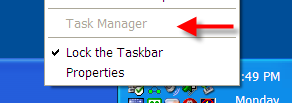


Or, if you try to run taskmgr.exe manually, you get this message:
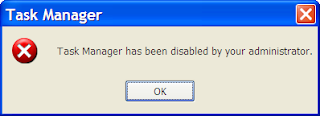


So, how did this happen?

As we'll see in a moment, there are settings you can access as an administrator that would allow you to disable and enable Task Manager in this way.

You didn't do that, you say?

Then a virus probably did.

Disabling Task Manager is one way viruses try to make it harder for you to deal with their infections. Before proceeding any further, you should run a complete and up-to-date anti-virus scan of your machine. It's possible, perhaps even likely, that you've been infected.

Once you come back virus-free, you can proceed with the fix.

If you have Windows XP Pro, there's a nifty user interface to directly edit the setting you want to repair. Click Start, then click Run and type in gpedit.msc:
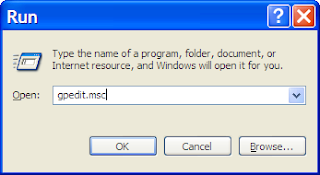


And press OK. This runs the Group Policy Editor.

Once in the Group Policy Editor, expand in turn:

  • User Configuration

  • Administrative Templates

  • System

  • Ctrl+Alt+Del Options

You should see something much like this:
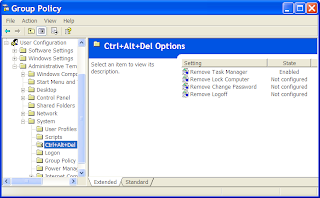
Double click on Remove Task Manager to change its setting:
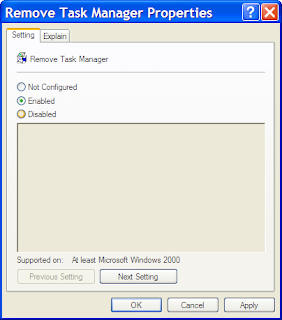
It should be enough to click on Not Configured and then OK and Task Manager is available once again.

If you don't have Windows XP Pro, then you'll need to edit the registry manually.

Click Start, then click Run, type in regedit, and click on OK.

Expand these registry keys in turn:

  • HKEY_CURRENT_USER

  • Software

  • Microsoft

  • Windows

  • CurrentVersion

  • Policies

  • System

You should see something similar to this:

Right Click on the DisableTaskMgr item:
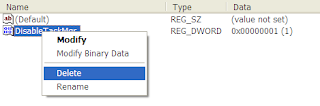
Click on Delete, confirm that you want to delete, and Task Manager should be available once again.

Thursday, February 26, 2009

Simple Tips to shoot great snaps with your Digital Camera

Do you wish you were a better photographer? All it takes is a little know-how and experience. Keep reading for some important picture-taking tips. Then grab your camera and start shooting your way to great pictures.

  • Look your subject in the eye
    Direct eye contact can be as engaging in a picture as it is in real life. When taking a picture of someone, hold the camera at the person's eye level to unleash the power of those magnetic gazes and mesmerizing smiles. For children, that means stooping to their level. And your subject need not always stare at the camera. All by itself that eye level angle will create a personal and inviting feeling that pulls you into the picture.
  • Use a plain background
    A plain background shows off the subject you are photographing. When you look through the camera viewfinder, force yourself to study the area surrounding your subject. Make sure no poles grow from the head of your favorite niece and that no cars seem to dangle from her ears.
  • Use flash outdoors
    Bright sun can create unattractive deep facial shadows. Eliminate the shadows by using your flash to lighten the face. When taking people pictures on sunny days, turn your flash on. You may have a choice of fill-flash mode or full-flash mode. If the person is within five feet, use the fill-flash mode; beyond five feet, the full-power mode may be required. With a digital camera, use the picture display panel to review the results.
    On cloudy days, use the camera's fill-flash mode if it has one. The flash will brighten up people's faces and make them stand out. Also take a picture without the flash, because the soft light of overcast days sometimes gives quite pleasing results by itself.
  • Move in close
    If your subject is smaller than a car, take a step or two closer before taking the picture and zoom in on your subject. Your goal is to fill the picture area with the subject you are photographing. Up close you can reveal telling details, like a sprinkle of freckles or an arched eyebrow.
    But don't get too close or your pictures will be blurry. The closest focusing distance for most cameras is about three feet, or about one step away from your camera. If you get closer than the closest focusing distance of your camera (see your manual to be sure), your pictures will be blurry.
  • Move it from the middle
    Center-stage is a great place for a performer to be. However, the middle of your picture is not the best place for your subject. Bring your picture to life by simply moving your subject away from the middle of your picture. Start by playing tick-tack-toe with subject position. Imagine a tick-tack-toe grid in your viewfinder. Now place your important subject at one of the intersections of lines.
    You'll need to lock the focus if you have an auto-focus camera because most of them focus on whatever is in the center of the viewfinder.
  • Lock the focus
    If your subject is not in the center of the picture, you need to lock the focus to create a sharp picture. Most auto-focus cameras focus on whatever is in the center of the picture. But to improve pictures, you will often want to move the subject away from the center of the picture. If you don't want a blurred picture, you'll need to first lock the focus with the subject in the middle and then recompose the picture so the subject is away from the middle.
    Usually you can lock the focus in three steps. First, center the subject and press and hold the shutter button halfway down. Second, reposition your camera (while still holding the shutter button) so the subject is away from the center. And third, finish by pressing the shutter button all the way down to take the picture.
  • Know your flash's range
    The number one flash mistake is taking pictures beyond the flash's range. Why is this a mistake? Because pictures taken beyond the maximum flash range will be too dark. For many cameras, the maximum flash range is less than fifteen feet—about five steps away.
    What is your camera's flash range? Look it up in your camera manual. Can't find it? Then don't take a chance. Position yourself so subjects are no farther than ten feet away.
  • Watch the light
    Next to the subject, the most important part of every picture is the light. It affects the appearance of everything you photograph. On a great-grandmother, bright sunlight from the side can enhance wrinkles. But the soft light of a cloudy day can subdue those same wrinkles.
    Don't like the light on your subject? Then move yourself or your subject. For landscapes, try to take pictures early or late in the day when the light is orangish and rakes across the land.
  • Take some vertical pictures
    Is your camera vertically challenged? It is if you never turn it sideways to take a vertical picture. All sorts of things look better in a vertical picture. From a lighthouse near a cliff to the Eiffel Tower to your four-year-old niece jumping in a puddle. So next time out, make a conscious effort to turn your camera sideways and take some vertical pictures.
  • Be a picture director
    Take control of your picture-taking and watch your pictures dramatically improve. Become a picture director, not just a passive picture-taker. A picture director takes charge. A picture director picks the location: "Everybody go outside to the backyard." A picture director adds props: "Girls, put on your pink sunglasses." A picture director arranges people: "Now move in close, and lean toward the camera.

Most pictures won't be that involved, but you get the idea: Take charge of your pictures!!

How to disable the annoying User Account Control [UAC] feature in Windows Vista easily?

User Account Control in Windows Vista is a feature of the operating system that has generated a consistent amount of criticism. As far as I can tell, basic ignorance was the foundation for the UAC complaints that have diminished following the general availability of the operating system. There is one simple reason for this and the people that are running Vista already know that you can barely notice the UAC prompts.

Microsoft does provide users with numerous ways to disable or tone down the feature. And there is even a piece of free software that centralizes the UAC functionality options into an easy to use interface. TweakUAC 1.0 Enables users to either enable or disable the UAC and also offer an intermediary solution dubbed Quiet Mode.

TweakUAC is a freeware software utility that can be used to quickly turn UAC (User Account Control of Microsoft Windows Vista) on or off, or to make UAC operate in the quiet mode.

Turn UAC off
This option turns UAC off completely. If this is what you want, select this option, press OK, restart the computer, and you won’t see the elevation prompts anymore. Windows Vista will operate pretty much like Windows XP does when you login to its administrator’s account.

Switch UAC to the quiet mode
This option does not turn off UAC; instead, it only makes UAC to operate in the quiet mode. In the quiet mode, UAC does not display the elevation prompts for the administrators. That is, when you attempt to do an administrative task, you will be allowed to proceed automatically, without prompting you to confirm the operation. All other features of UAC would still be enabled: the programs will run with the standard user permissions by default, and the standard users will still see the elevation prompts (the quiet mode applies to the administrator accounts only).

Leave UAC on
If you have previously turned UAC off or switched it to operate in the quiet mode, you can use this option to restore the original behavior of UAC.

Note that if you turn UAC off or swicth it to operate in the “quiet” mode, Vista starts displaying a warning message in its taskbar. You can turn that message off, though: double-click on the shield icon in the taskbar to open Windows Security Center. Then click on the “Change the way Security Center alerts me” link, in the left panel. Finally, choose one of the “Don’t notify me” options.

Note also that if you have used the Local Security Policy tool of Windows Vista to change the advanced configuration options of UAC, they will not be affected by TweakUAC; you would have to use the Local Security Policy tool to modify them.

You can download this cool Freeware from here : http://www.tweak-uac.com/download/


How to easily connect 2 Monitors [dual] in Windows?

With monitor prices heading downward - it's simply more productive to have Dual Monitors. Most graphics cards with two video outputs usually support dual monitors, so it shouldn't be a problem. Here's a simple way to add that extra monitor to your Windows PC.

What you need to do is go into your display properties (Right click on desktop -> Properties) and go to the settings tab. If two monitors appear in the settings window, your computer is set up to support dual-monitors. Right click on Monitor Two, and select "Attached." Then check the box below that says "Extend my windows desktop onto this monitor." Chick apply, and you have two monitors! You may have to adjust resolution and color settings to get it just right.

There are a number of advatages to having dual monitors, including being able to have two programs up at once, much more desktop space, etc. The only real downside is that it takes more of your video cards processing time and memory, and takes up more room on your "real" desktop, but I personally love dual monitors. One for your business and the other to surf the web away!!

If you have any problems setting it up, consult the manual. (Or the products website if you've lost that) There may be something specific to your video card that I wouldn't know about.

Do let me know your thoughts on dual monitors.